The builder
Builder tour
A guided tour runs the first time you open the builder. You can replay it any time from the ? button in the top-right. This page is the same thing in writing.
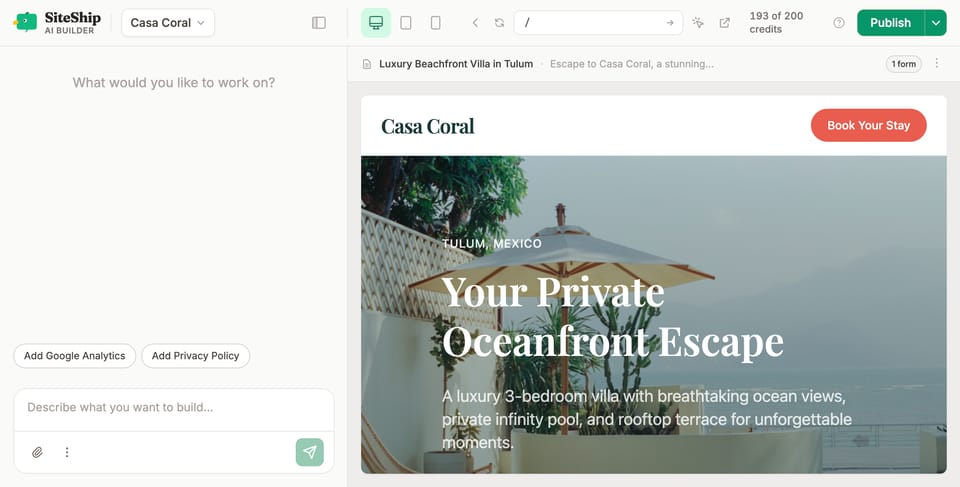
Layout
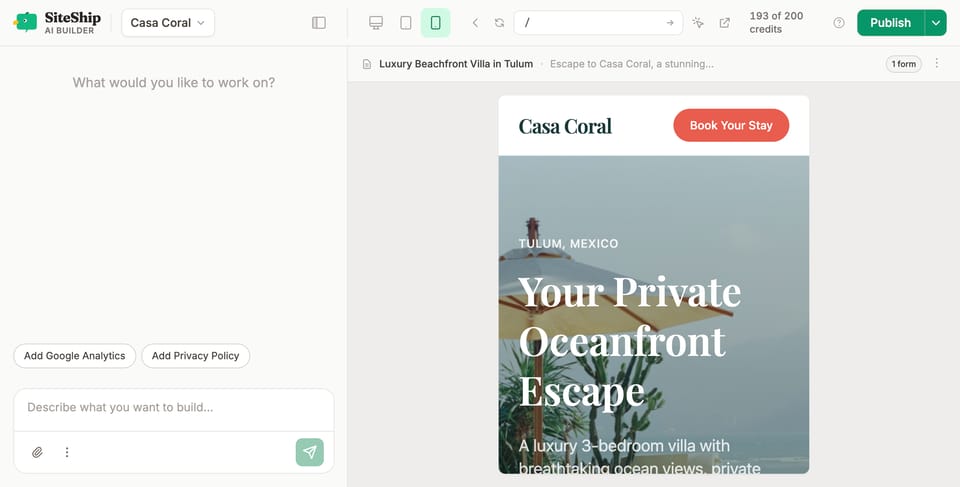
The builder splits into two panels:
- Left — chat panel. This is how you instruct the builder.
- Center / right — live preview. What your visitors will see.
Collapse the left panel with the chevron at its top edge to maximize preview space.
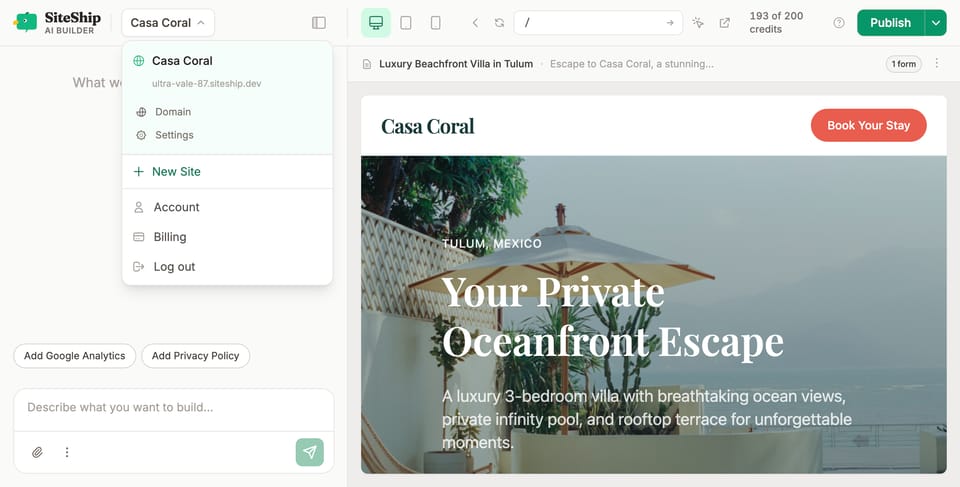
Site switcher (top-left)
Click your site name to:
- Jump to another site you own.
- Create a new site from scratch.
- See sites you've been added to as a team member.
- Open Domain, Settings, Account, Billing, or log out.
Chat panel
Type plain English. Each instruction creates a checkpoint — a snapshot you can roll back to if you don't like the result. There's no "undo" button; the version system is the undo.
Things that work:
- "Add a pricing section with three tiers: Free, Pro, Team."
- "Make the hero feel more energetic — punchier headline, brighter accent color."
- "Replace the photo in the about section with one of a coffee shop."
The builder will ask clarifying questions if your prompt is ambiguous. Answer in the same chat.
Element picker
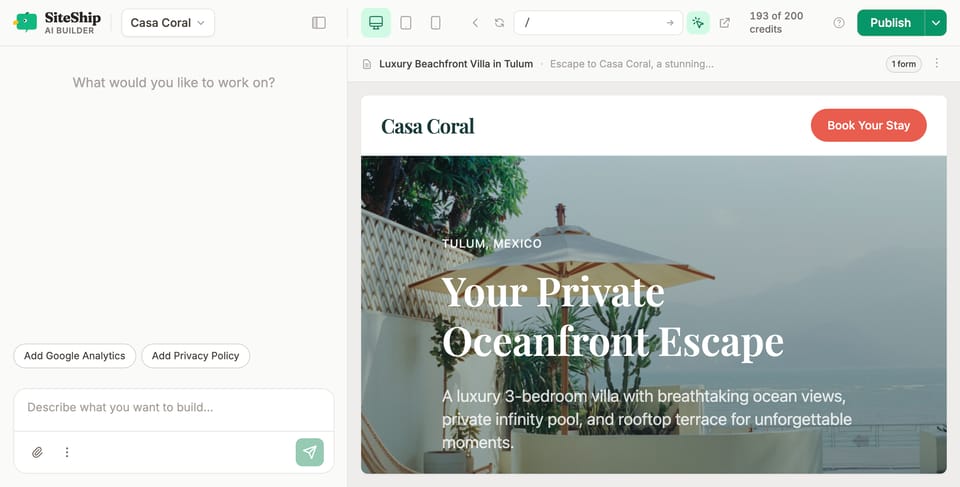
Toggle the element picker in the toolbar (looks like a target). Click any element on the preview — a heading, a button, an image, a card. The smart bar appears with quick edits relevant to that element type:
- Headings → change the text, swap heading level.
- Buttons / links → edit the label, change the destination.
- Images → upload a replacement, change alt text.
- Sections → duplicate, reorder, delete.
For anything more involved, drop back into the chat — the picker just covers the common micro-edits.
URL bar
Above the preview, type any path on your site (/, /about, /blog/my-post) to navigate. Same as visiting that URL on a real browser, but inside the builder so the picker and edits stay live.
Device toggles
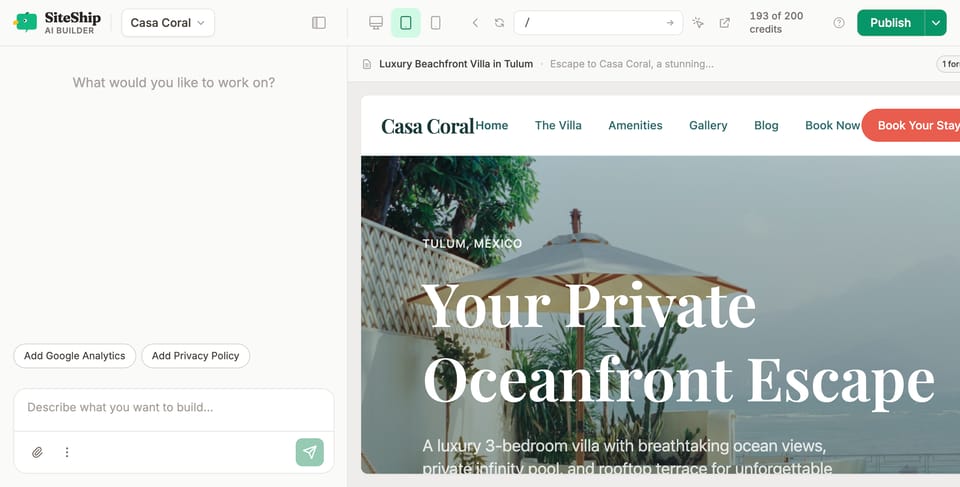
Three buttons next to the URL bar — Desktop, Tablet, Mobile. Switch between them to verify your site holds up across viewports. The builder edits responsively by default; this lets you check before you ship.
Credits
Top-right shows your AI usage for the current billing period. Each chat instruction costs a small amount of credits — most simple edits are well under one credit. Top up from Settings → Billing if you run low.
Publish
The publish dropdown lives top-right:
- Publish — push the current state live. Atomic; old version stays up until the new one's ready.
- Version history — the last 10 publishes are kept; one click rolls back.
- Export HTML — download the full rendered site as a zip (in case you ever want to leave).
Full publishing flow: Publishing & versions.
Settings
Gear icon, top-right. Six tabs: General, Domain, Team, Billing, Danger, Developer. See Settings.